
Snap a page
Take a photo of a school book page and read it in KianCan, with help on every word.
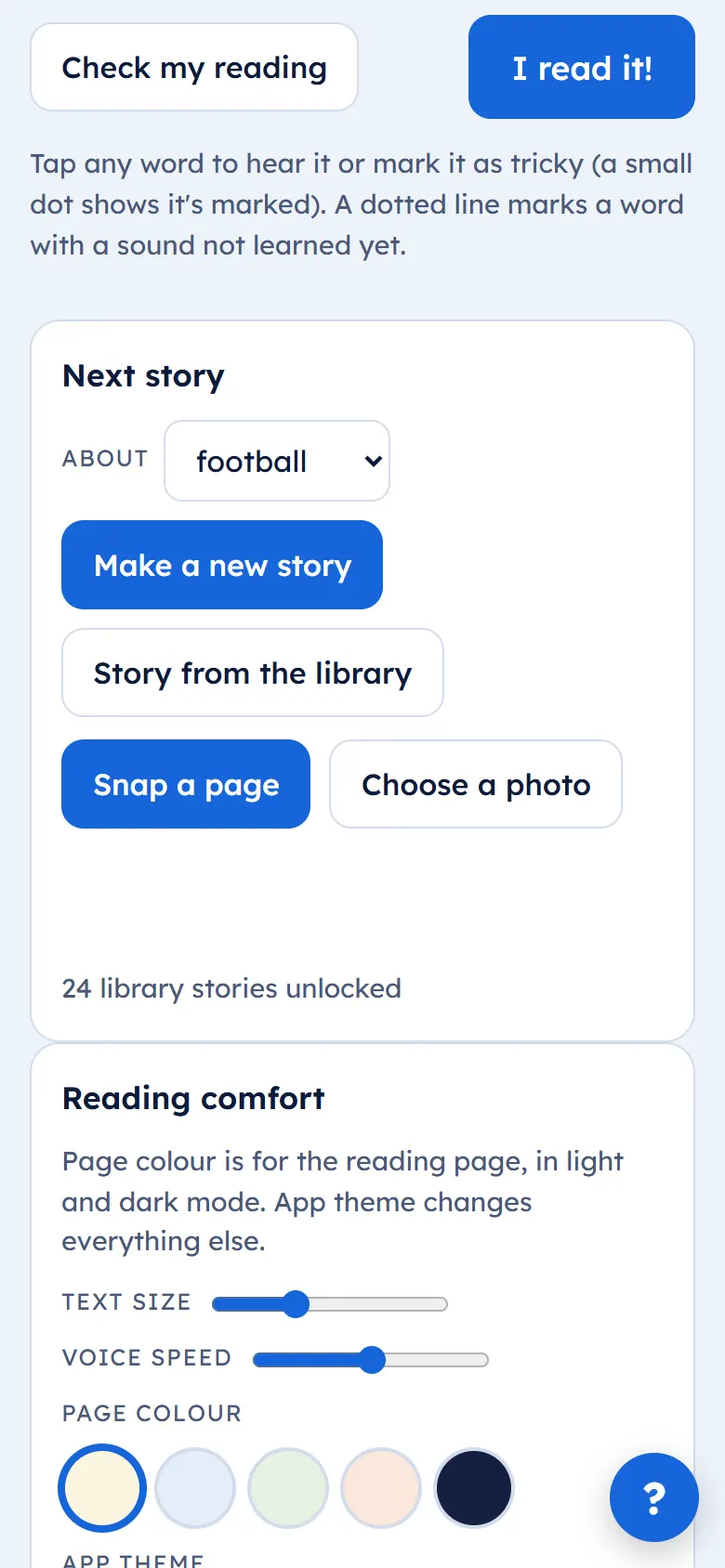
In the Library, tap Snap a page (or Choose a photo).
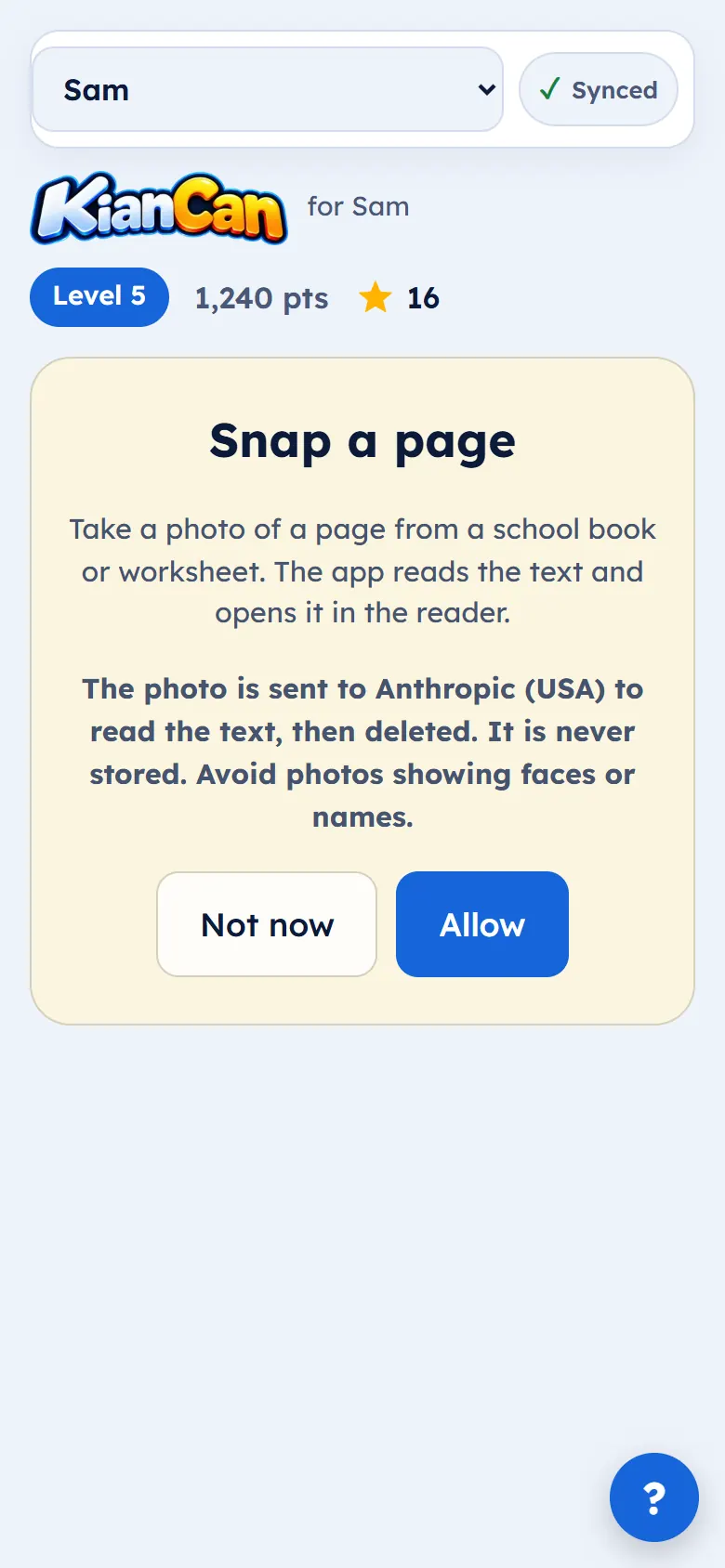
The first time, allow the camera. Photograph just the page: no faces or names.
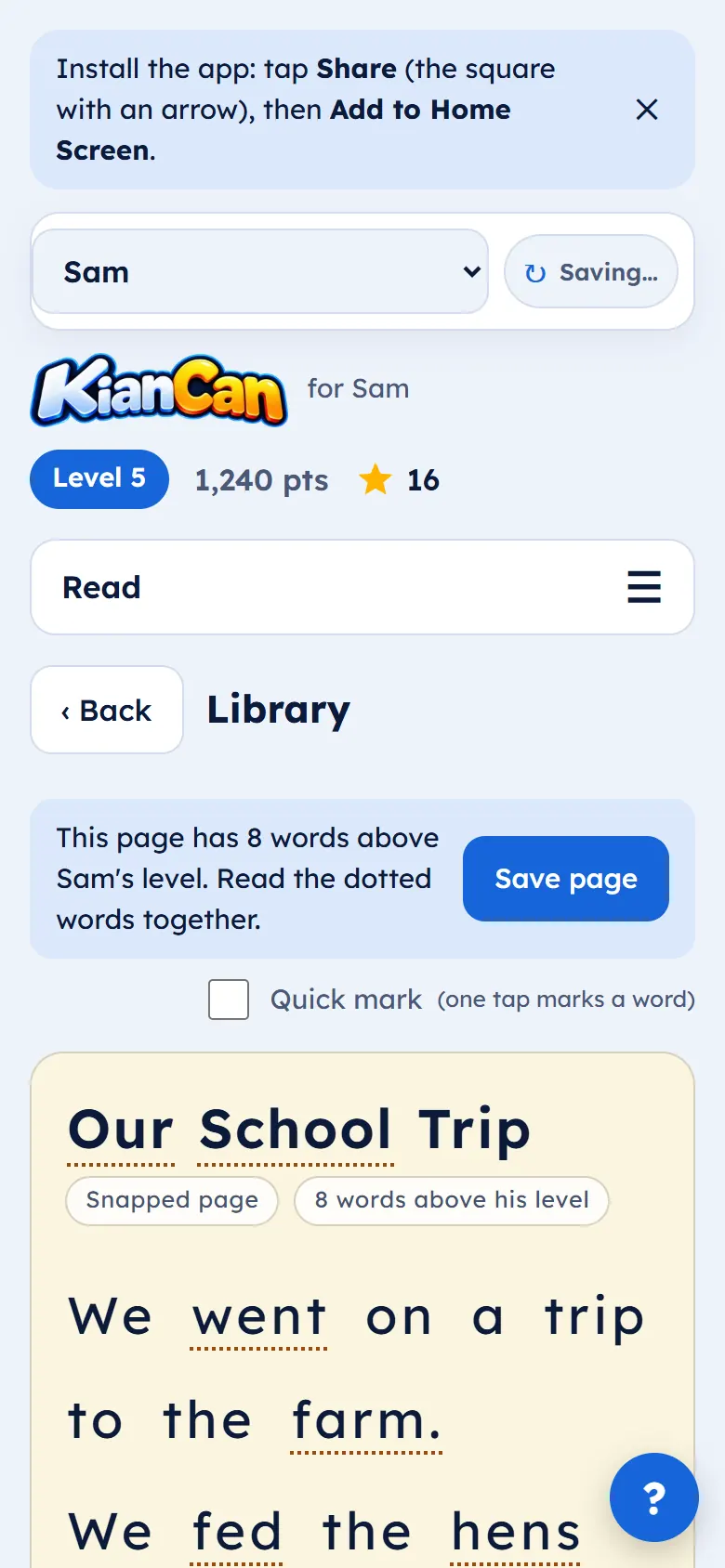
The page appears as a story you can read together, with Hear and Mark on every word. Tap Save page to keep it in My pages.
Still stuck? Email hello@kiancan.com.
All guides · Next: AI stories